Before you begin
We will be using your Teams application to access GCXchange and apply the workaround. Once done, we will then check your community access using your browser. You will need:
- Your Teams application
- Microsoft Edge (Chrome is not supported)
- Access to a GCXchange unclassified community1
If you submitted a support ticket to GCXchange then you will have been added to the GC Microsoft Developer Community – Communauté des développeurs Microsoft du GC (unclassified) and the GCXchange Internal Testing - Tests internes de GCXchange protected b community. These will be used during the application of the workaround.
If you have not submitted a ticket, please do so by visiting the GCXchange Support page. In the ticket, please state you have lost access to your protected B community, and we will add you to the two communities.
Step 1 – Check Teams
This step will verify you can switch to GCXchange:
- Open Teams from your comput
- Select your Account Manager icon located in the upper right corner and select GCXchange | GCÉchange. This will switch your Teams to the GCXchange tenant:
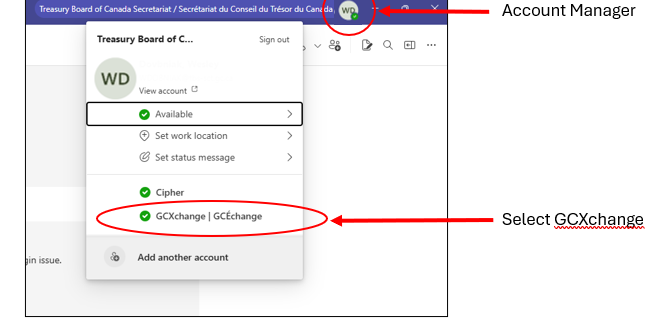
Figure 1 - Switch to GCXchange
- If you can complete step 2 above, you are ready to proceed to the Apply the workaround section on the next page. If not, continue with the next step.
- Launch your web browser and go to the GCXchange home page.
- From the GCXchange tope menu, select Communities. You will see a My communities section listing your communities.
- Select See all.
- Select the GC Microsoft Developer Community – Communauté des développeurs Microsoft du GC community and verify you get to the landing page.
- You may now close your browser.
Teams will now add GCXchange to your account manager (step 2 above). Please note: It may take up to 2 hours for Microsoft to add it. Once it has been added, you can repeat step 2.
Apply the workaround
- Launch Teams
- Select your Account Manager icon located in the upper right corner and select GCXchange | GCÉchange
- Select the Chat icon from the Teams navigation bar located on the left-hand side. You will see the list of all GCXchange communities you are an owner or member of.
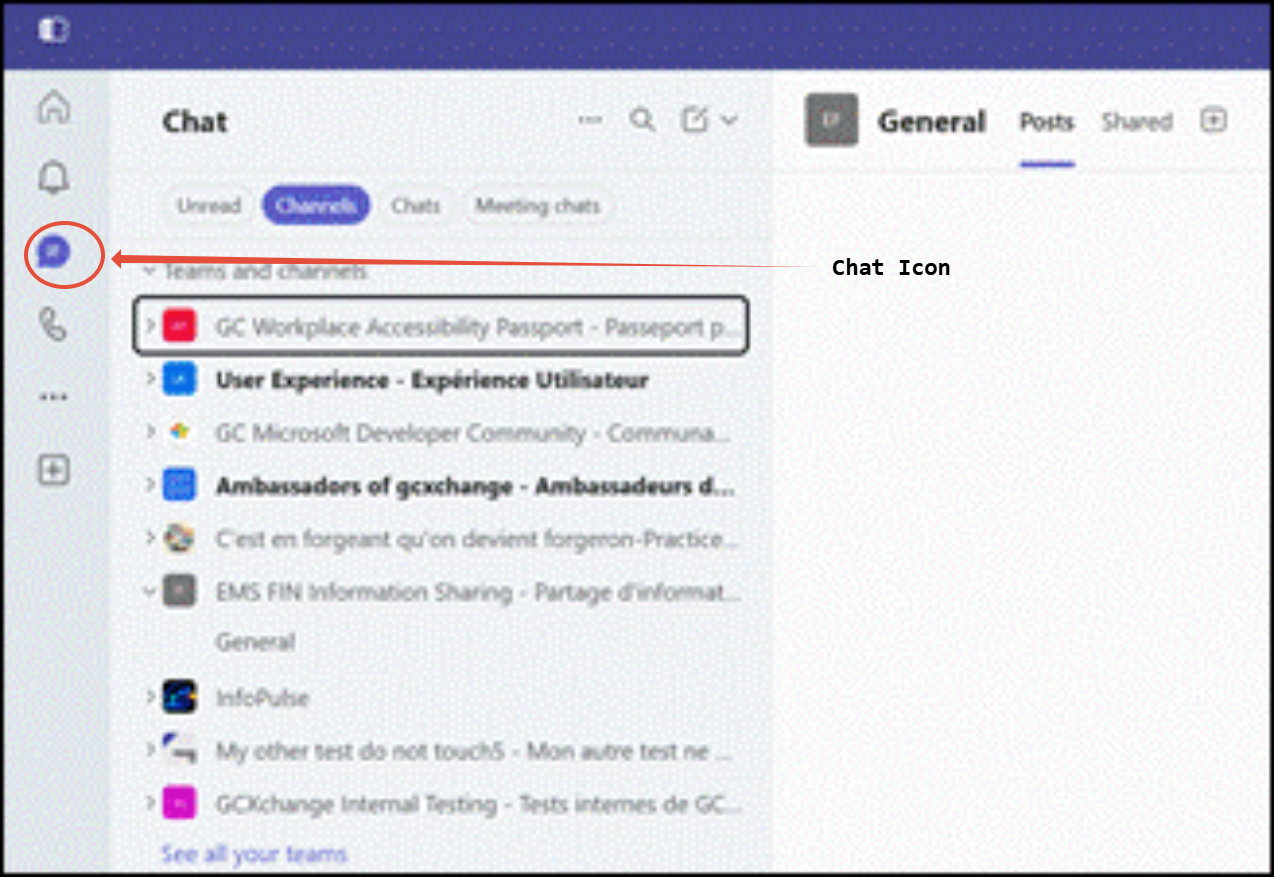
Figure 2 – Select the Chat Icon
4. Select the “GCXchange Internal Testing” protected B community1 and select “General”: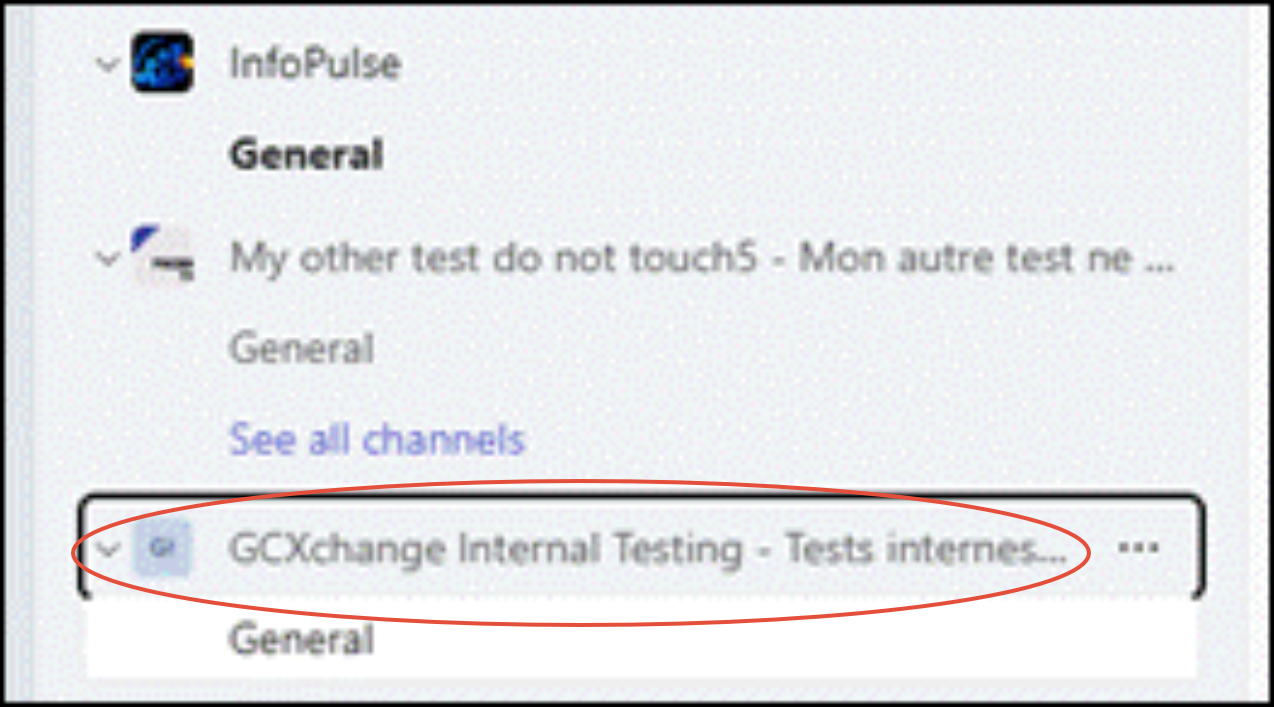
Figure 3 – Choose your community
1If the community is not there, please contact the GCXchange team at gcxchangeprob‑gcechangeprob@tbs-sct.gc.ca and notify them that you are trying the workaround but the “GCXchange Internal Testing” community is not listed. You cannot proceed with the workaround.
5. From the top menu in Teams, Select Shared:

Figure 4 - Switch to GCXchange
- Perform a 2-factor authentication
- Accept the GCXchange Terms and Conditions
7. Verify that you see the documents folder:
Figure 5 – Verify you see the Documents folder
8. If you see the documents folder your access may have been restored. Continue to step 9. If not, then you may still have an issue, and you will need to contact the GCXchange team at gcxchangeprob‑gcechangeprob@tbs-sct.gc.ca. Notify them that you tried the workaround and it failed.
9. Select the Home icon located on the left menu to return to the GCXchange home page:
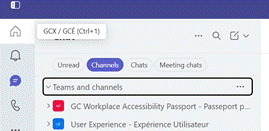
Figure 6 - GCXchange Home Page
10. From the GCXchange home page select Communities:
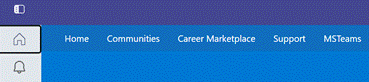
Figure 6 -Select Communities
11. Scroll down the page until you see your Communities section. Click see all. You will see all the communities you are a member of.
12. Select GCXchange Internal Testing. Note: If you do not see this community, the workaround failed. Please email the GCXchange team at gcxchangeprob-gcechangeprob@tbs-sct.gc.ca and notify them you tried the workaround and it did not work.
13. Verify you can access the community with no errors.
14. Repeat steps 10 and 11 to return to your list of communities
15. Selectthe community you work in.16. Verify you can access the community with no errors.
You have now restored your access to your community via Teams. The following steps will test if you can access it using Edge.
17. Switch your Teams back to your department tenant: Select your Account Manager avatar in the upper right corner of Teams and select your department name.
18. Launch your web browser and go to GCXchange.
19. Try to access your Protected B community by goingto My Communities:a. If the solution worked, My Communities will load with your Protected B community listed. If the solution failed, My Communities will fail to load.
b. If you see your Protected B community, select it and see if it loads. If it fails to load or you are prompted to login, the solution failed.
Working with documents
With your access restored, you can now work on the documents you have in your library. However, you may encounter an issue when opening files (documents, spreadsheets, presentations). By default, Microsoft opens files in your browser, and they may fail to open. If this occurs, you must open the file in your desktop application. To open a file in your desktop application:
- Locate the document you want to open
- Move your mouse over the area to the right of the document name. You will see three trailing dots:
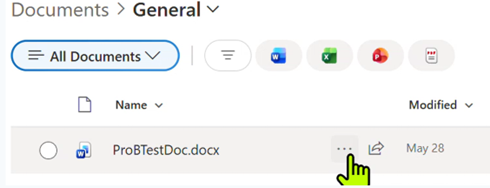
3. Select the dots, then select Open, then select Open in app:

4. Your file will open in the desktop application, and your edits will be saved.