Prerequisite
The user must have access to GCXchange and be a member or owner of a community on the platform.
To use Forms within SharePoint in GCX, proceed with following steps:
Access GCXchange and navigate to the community you own, or of which you are a member.
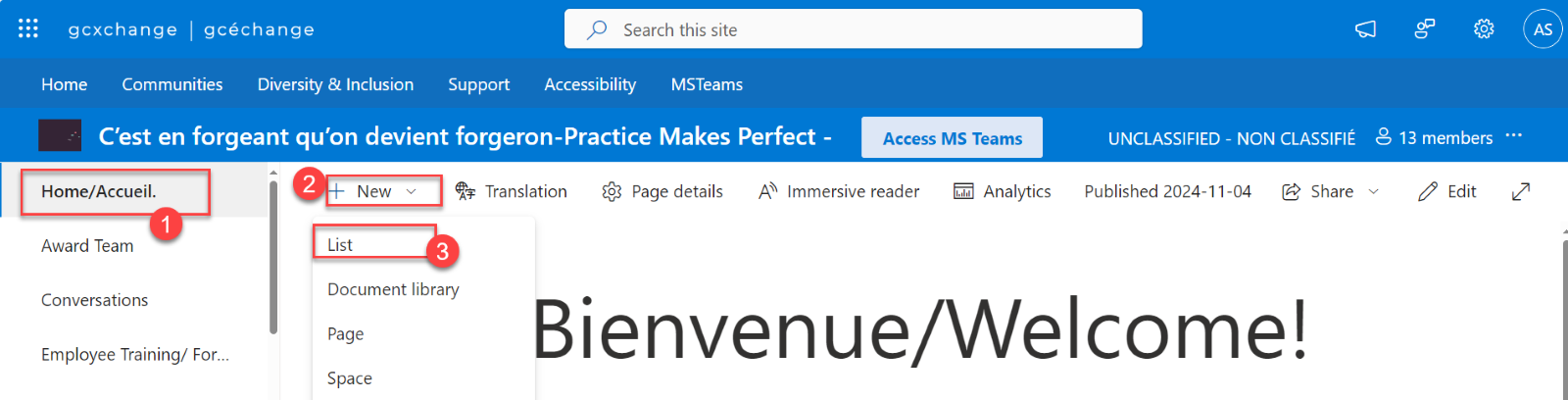
On your GCXchange community homepage, select “New”, followed by “List”.
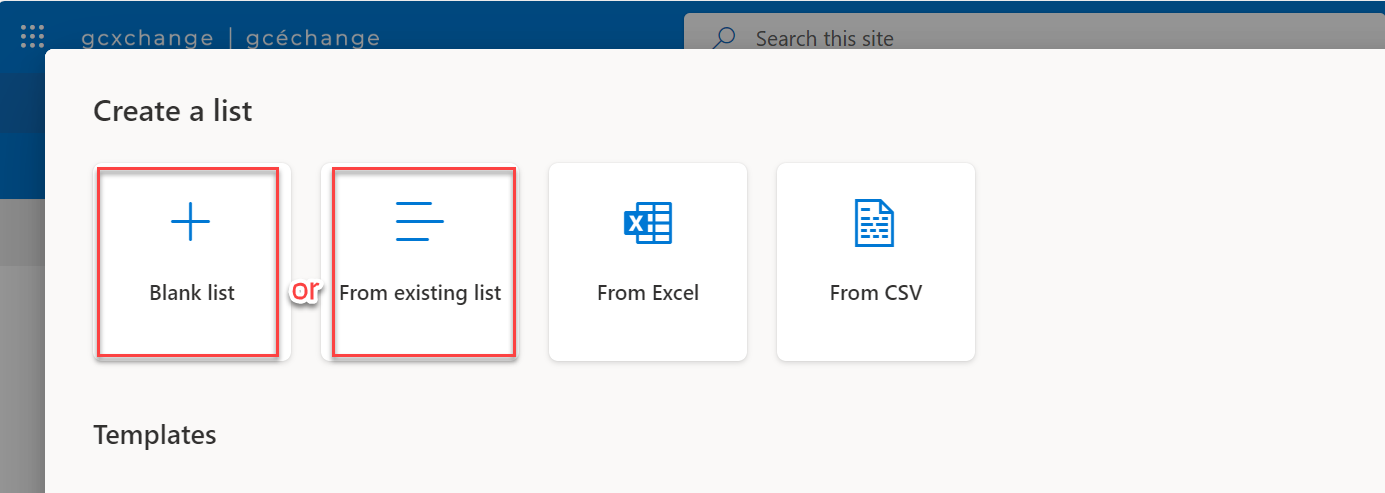
Select “Blank list” to create a new list or select “From Existing list” if you have previous lists.
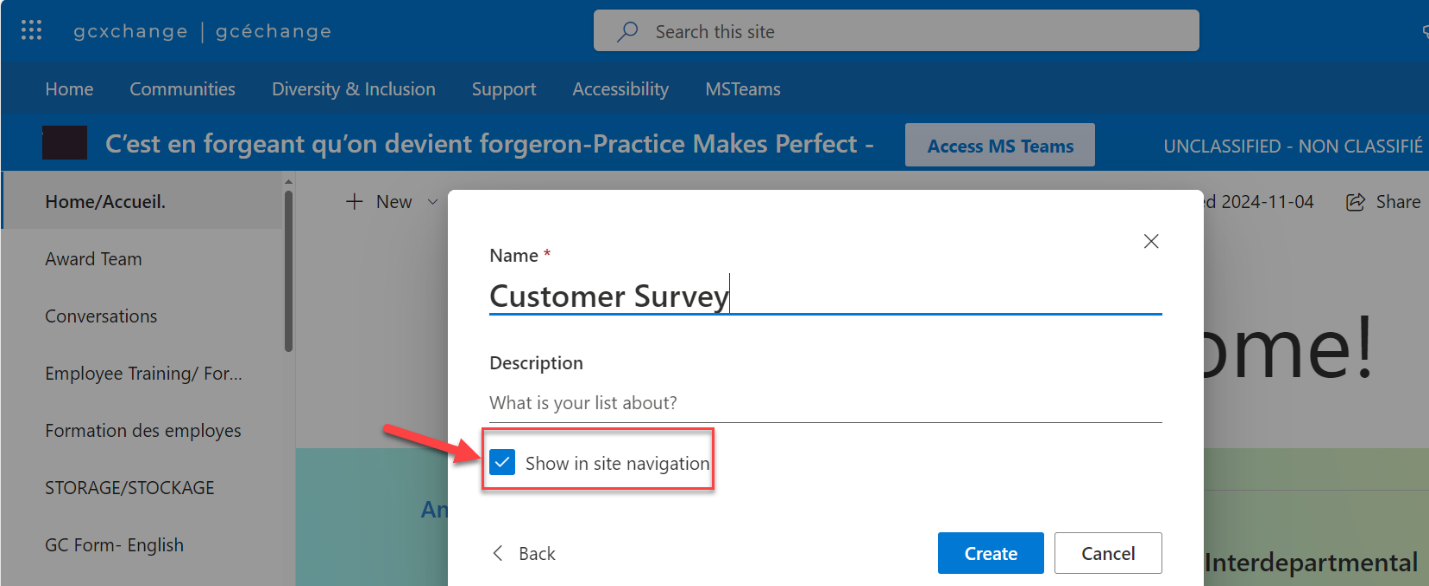
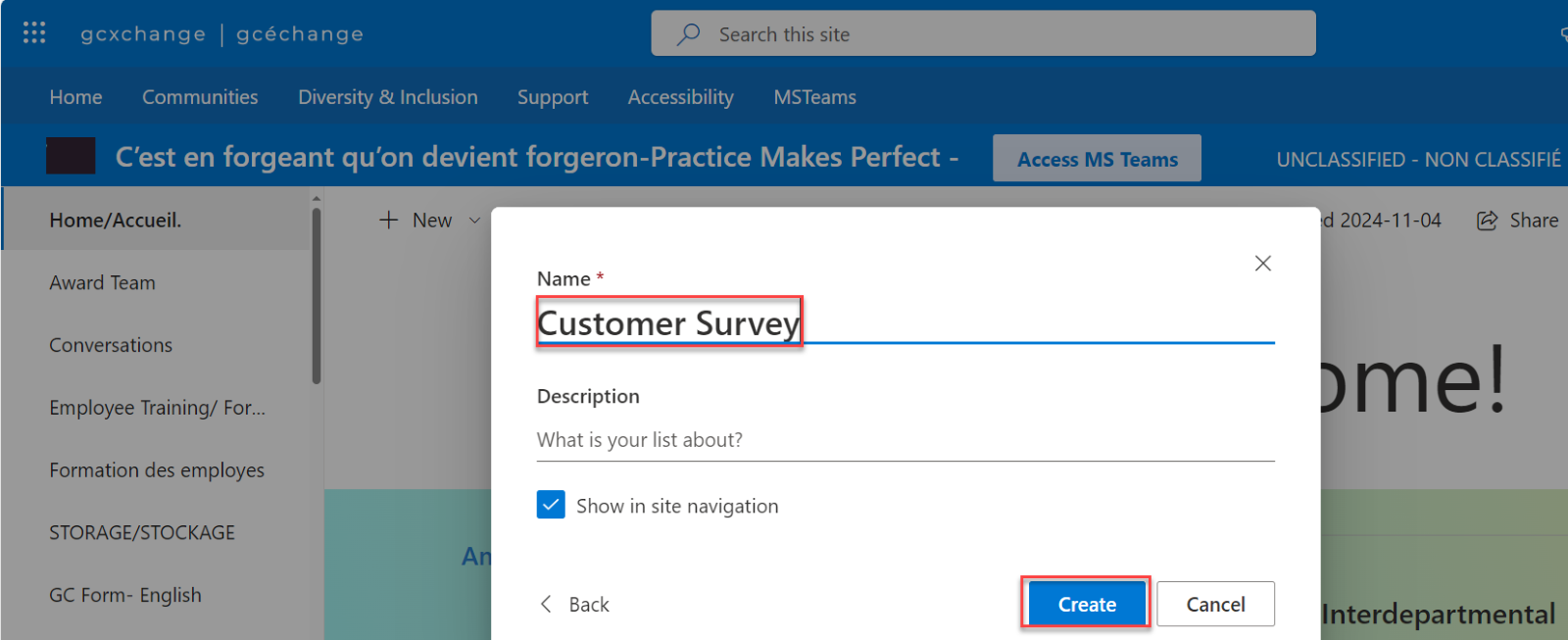
Give your list a proper title and add a description if you wish. Then select “Create”.
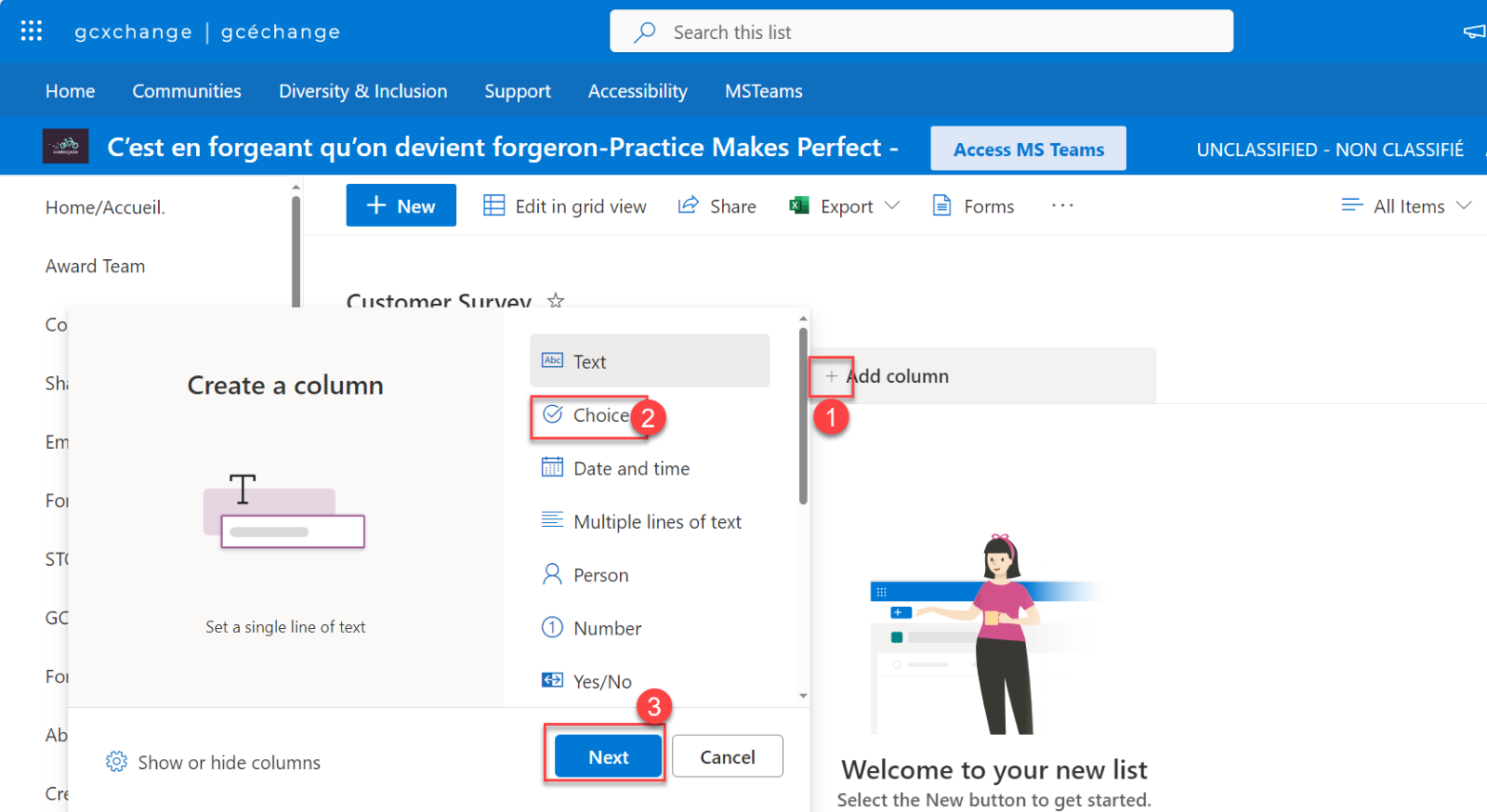
Select "Add column". This will prompt you to select a question type, such as multiple choice or text field. In this case, select “Choice” and then “Next”.
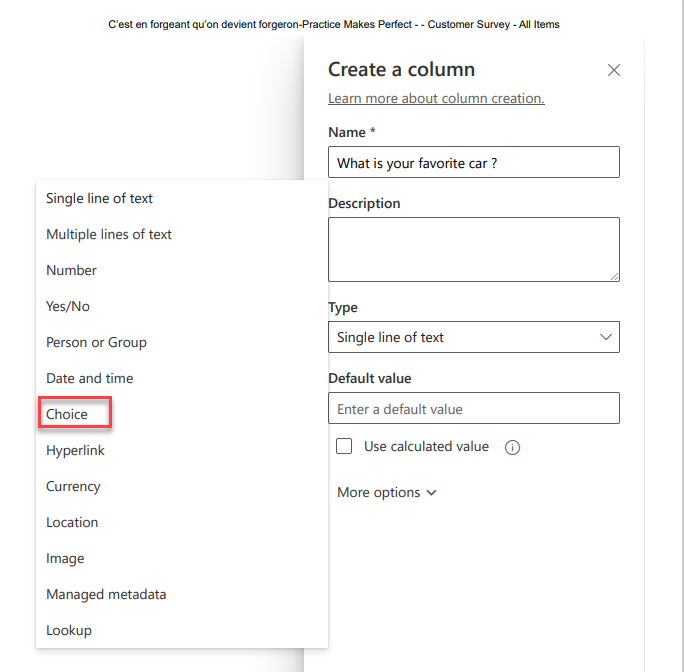
A panel will open requesting further information. Write the question you wish to pose in the “Name” field. Under type, select “Choice”.
Add the choices and select save.
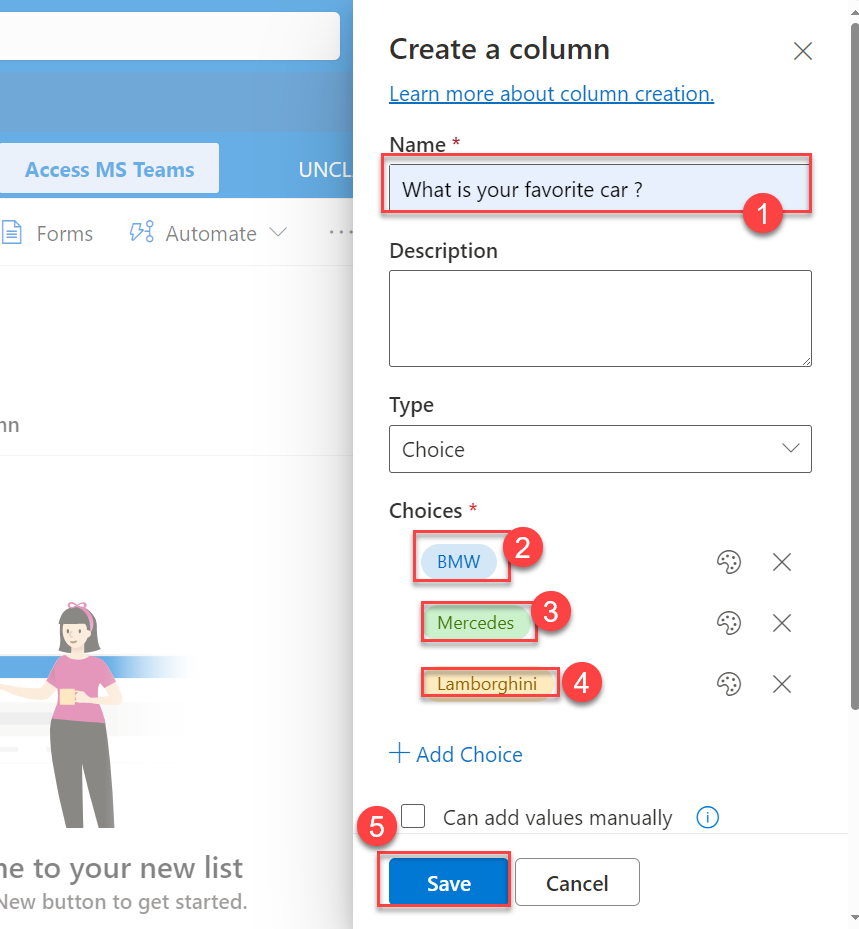
Continue to add questions as desired by repeating the process.
Once you finish adding your questions on your created list, on the list, select “Forms” to display or see the questions.
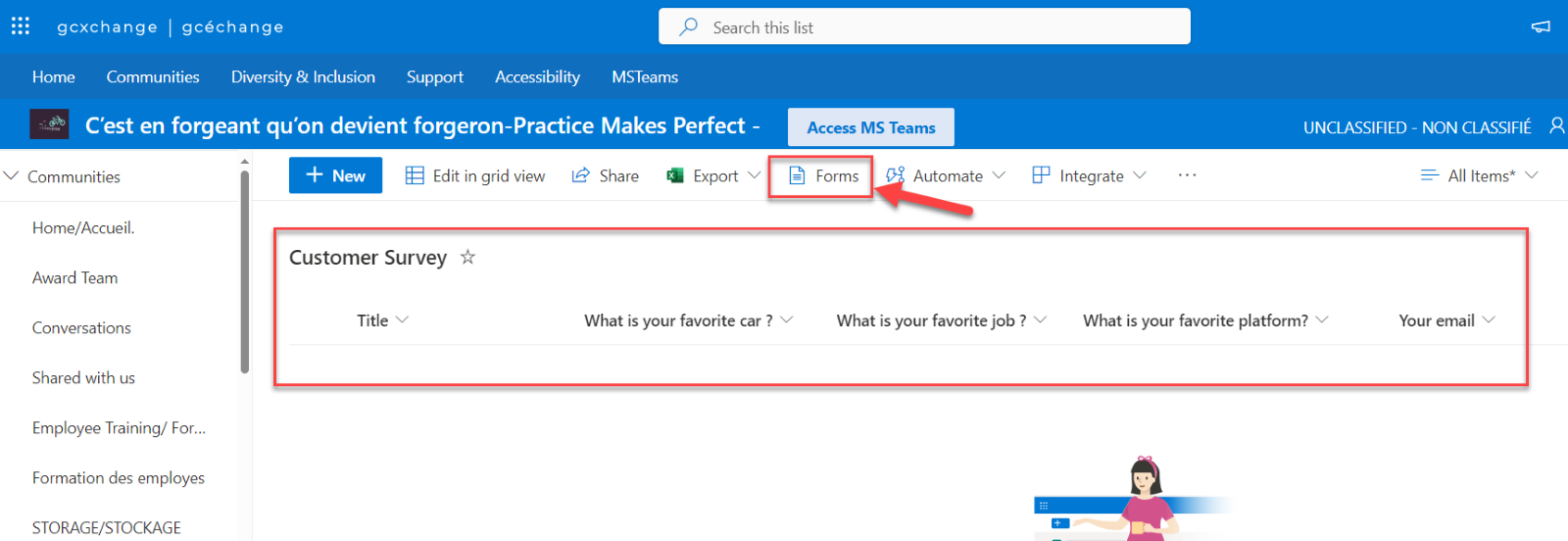
Note: If the columns you added are not visible in your Forms, you need edit the SharePoint list view to make it visible on the forms.
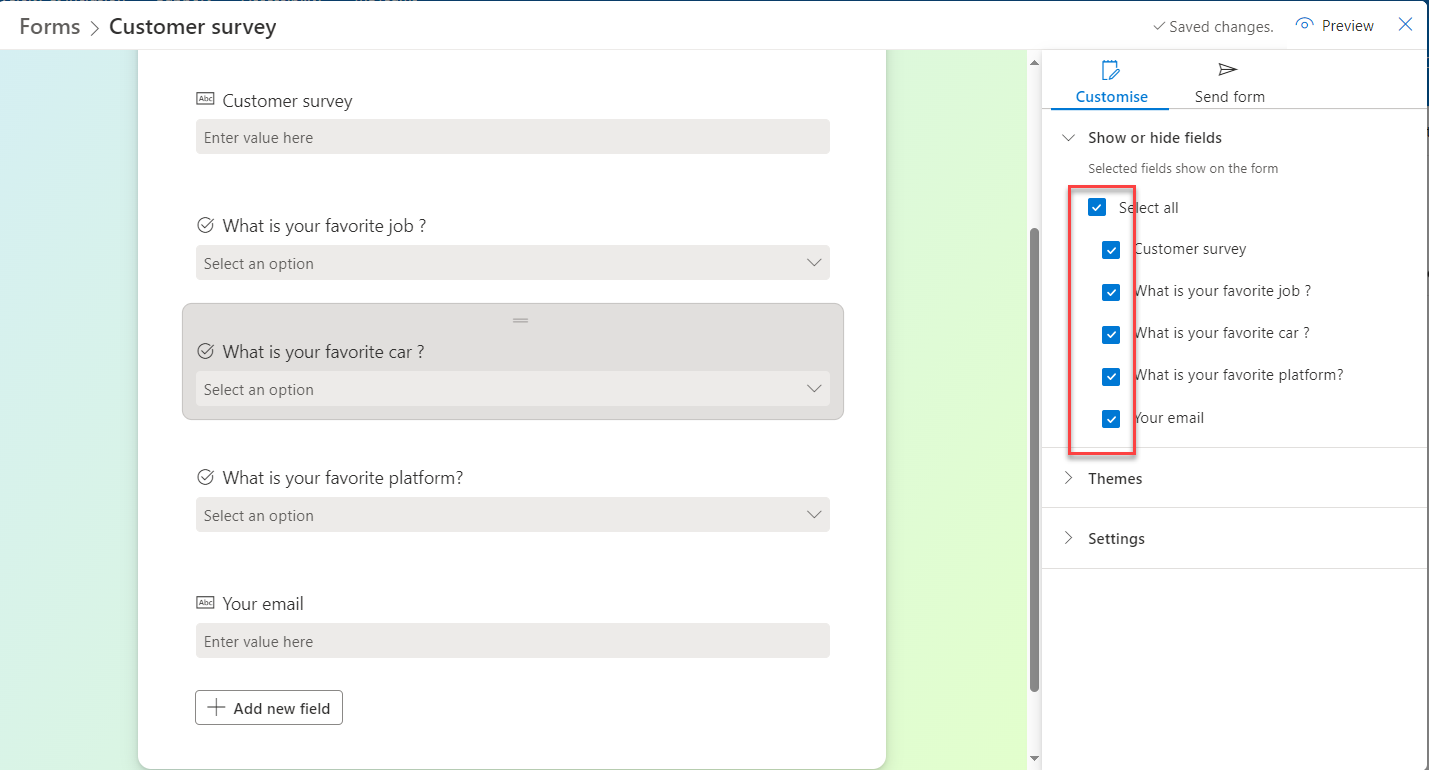
In the same window of your Form, there will be a side panel. This panel will have multiple tabs. Select the “Customize” tab. There you will find checkboxes. You can check or uncheck fields you want to display or hide.
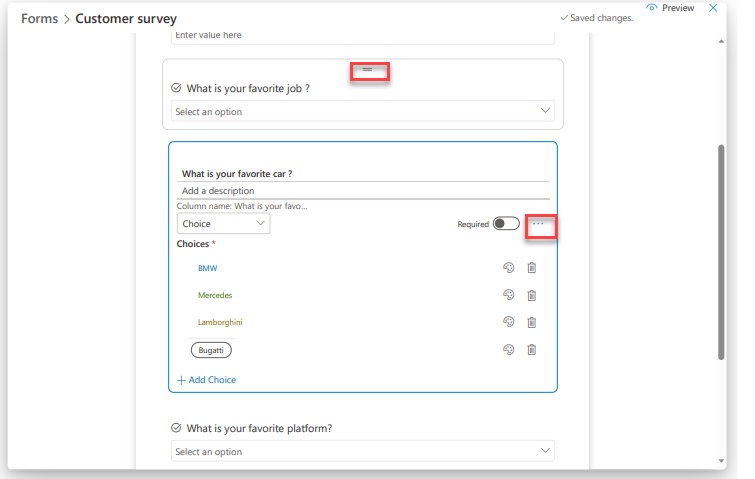
To edit your question, select the “Two lines” in front of your question to expand then select the “Ellipses” to hide the question, move it up or down in order. Select “Recycle bin” if you wish to delete the question.
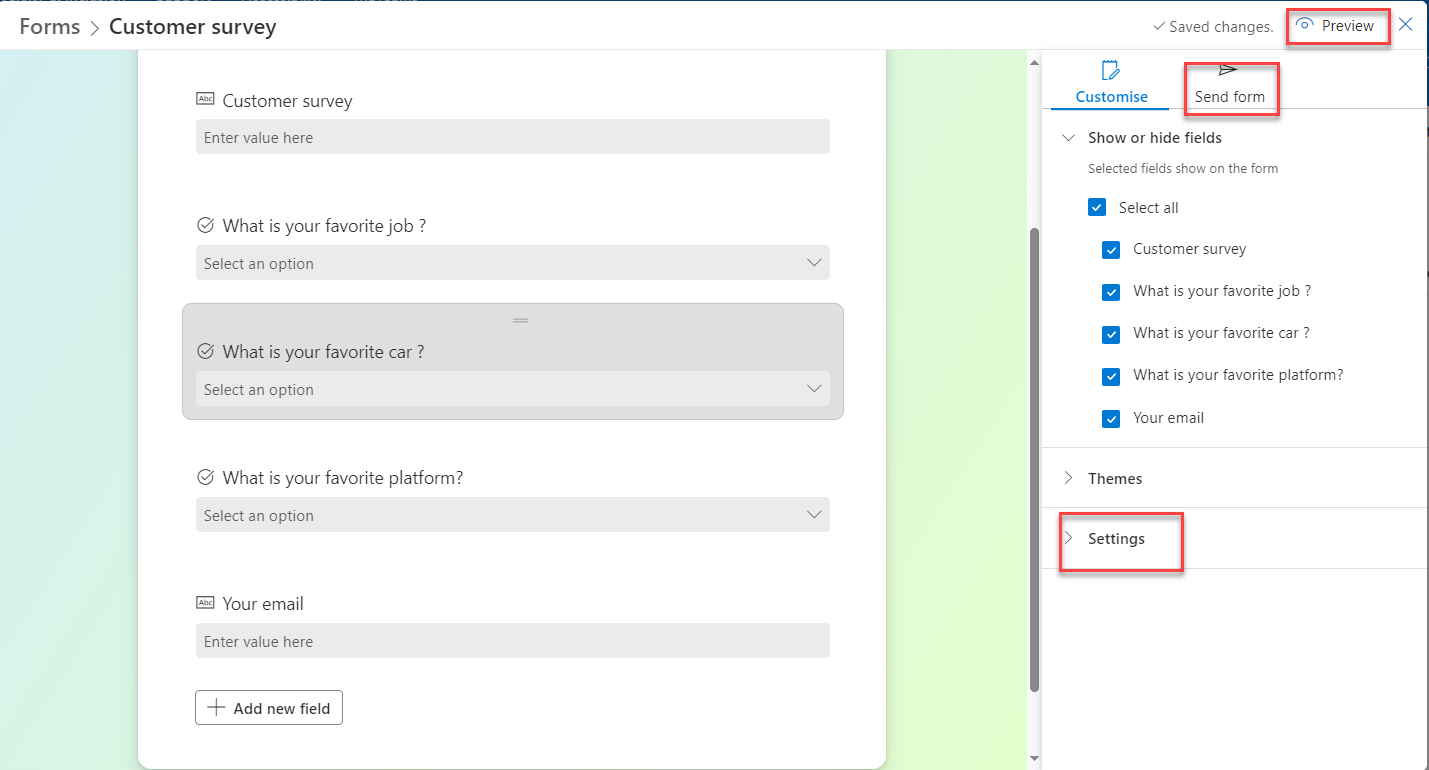
You can test your form before sending it out to recipients by selecting “Preview”. Select “Send” to get a link to your form. Select “Settings” to set a start date and end date for your survey. You can also customize the message the recipients will see after completing the survey in the same setting page.
For instance, you could add: Thank you for providing your feedback. Your response has been submitted.
Exporting your form to Excel
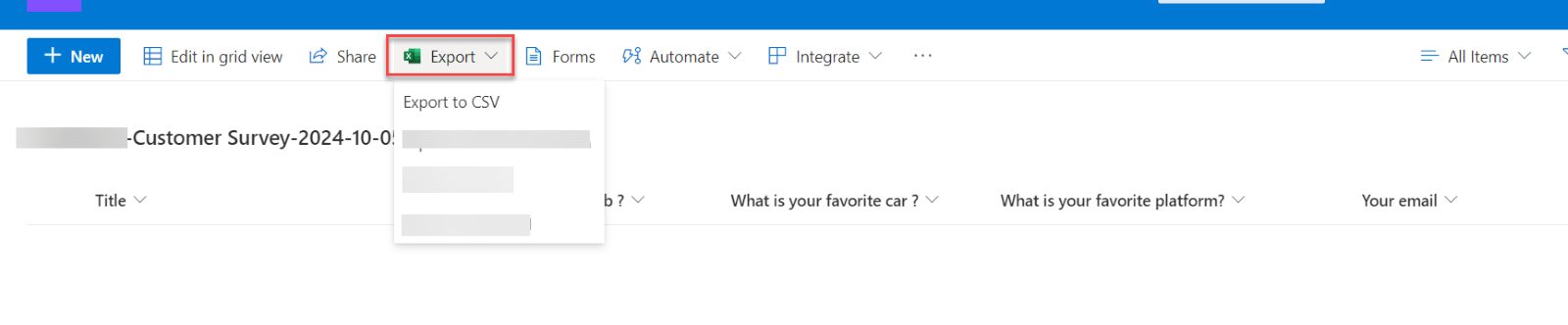
We highly recommend using the “Export to CSV” function. Other options can be problematic because the data will not display properly.
To export your survey to excel, go to your SharePoint list and select “Export” then “Export to CSV.” Power BI is currently not supported on GCXchange.
Note: if you have more than one survey or poll, you can search to choose the desired survey or poll.
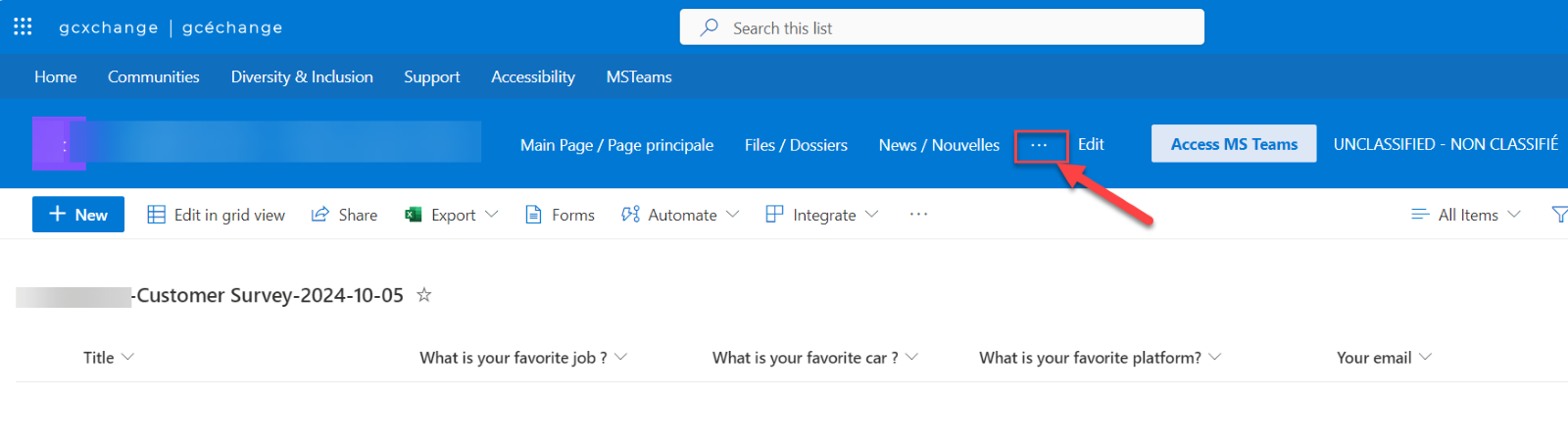
Other way you can find them is by selecting “Ellipses” if you check off Show in site Navigation