To give a user Full Control to a specific SharePoint file or page, follow these steps:
1. Navigate to the File or Page:
- Go to the SharePoint site and open the document library or page where the item is located.
- Find the file or page you want to give full access to.
2. Open Item's Permissions:
- For a file: Right-click on the file or click on the three dots (ellipsis) next to the file name, and then select Manage access (or Details > Manage access).
- For a page: Go to the page, click on the gear icon, and select Site contents. Find your page under Site Pages, click the ellipsis (three dots) next to the page, and select Manage access.
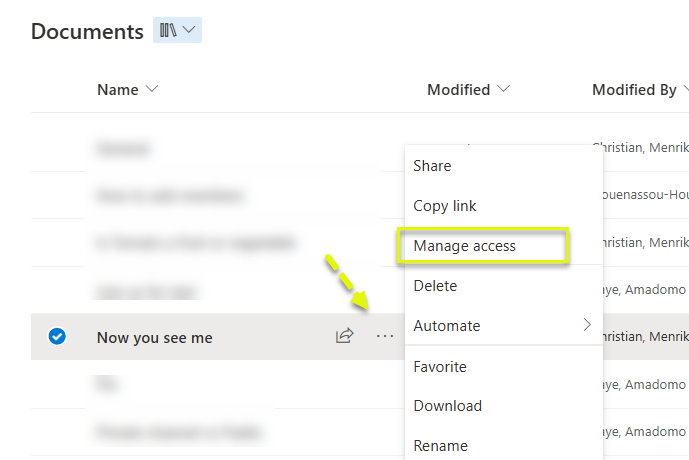
3. Manage Permissions:
- In the Manage Access window, you’ll see a list of users and groups who currently have access to the item.
- To add a new user, click on Grant Access.
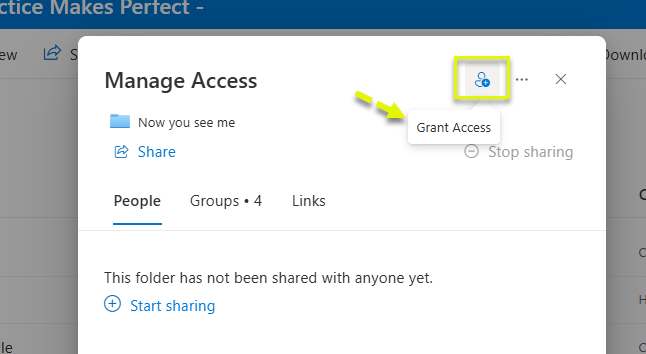
4. Grant Access:
- In the Grant Access section, enter GCX_SUPPORT
- Choose Edit from the dropdown menu (it may show up as "Can Edit" or "Can View" by default)
- Click Grant Access to apply the permissions.
5. Grant Full Control:
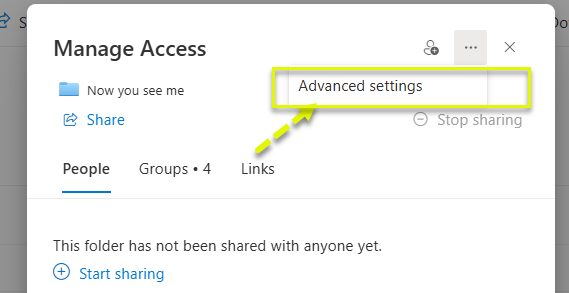
- In the Advanced Settings section, select GCX_SUPPORT
- Choose Edit from the dropdown menu (it may show up as "Can Edit" or "Can View" by default; change it to Full Control).
- Click Grant Access to apply the permissions.
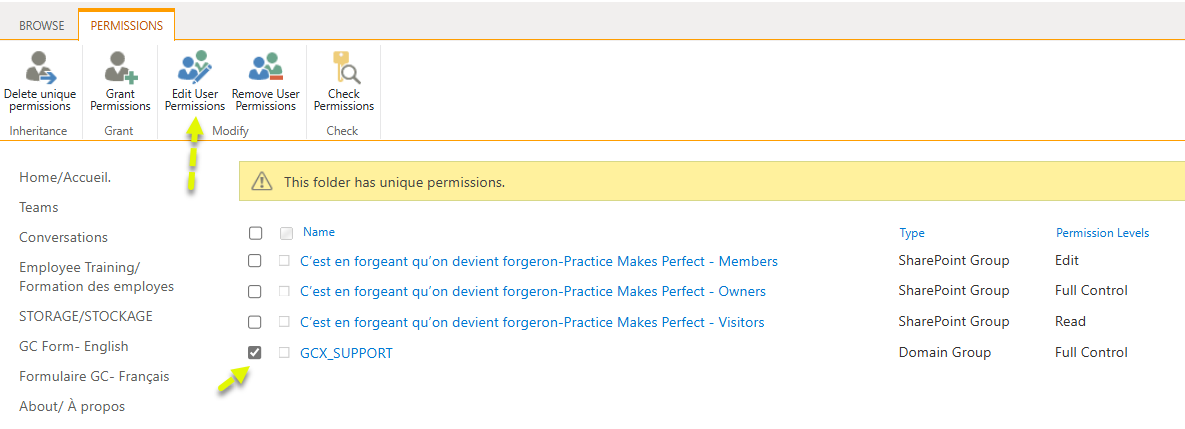
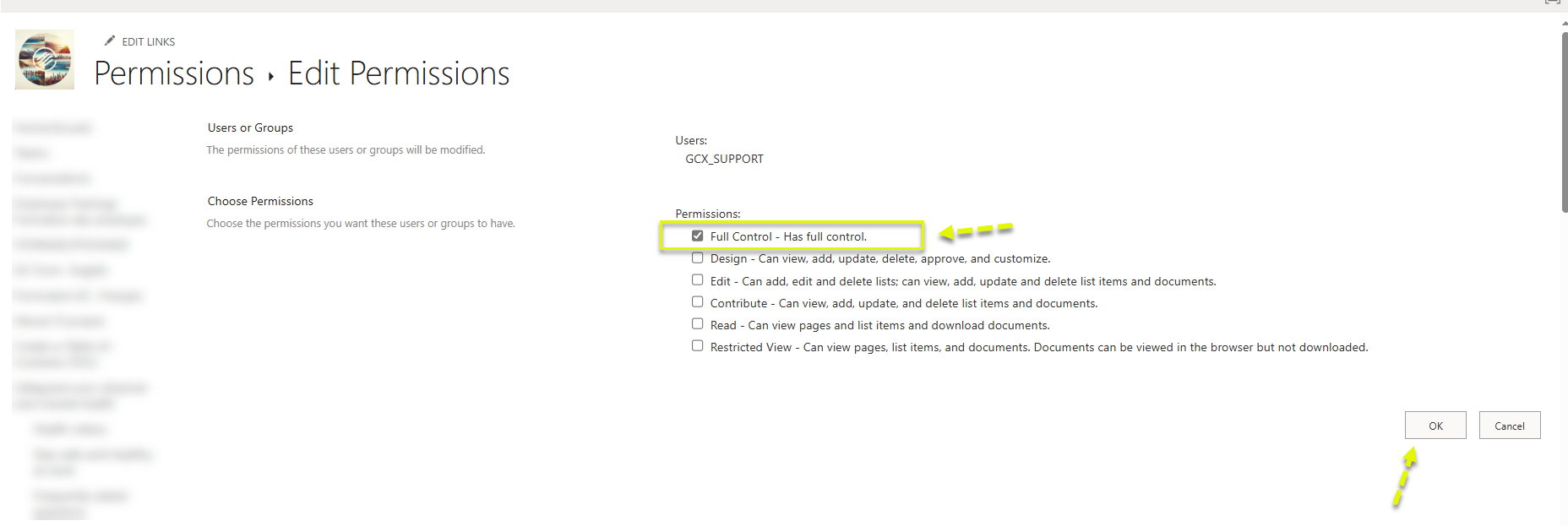
6. Confirm Permissions:
- The Support team now has Full Control to the specific file or page. They can modify permissions or manage the item, just like a site owner. This is a setting by default that should not be removed to ensure that the support team is able to continue helping you.